

You open Discord, join a call, start talking… and nobody hears anything. Then, error 3002 Discord mic pops up, and suddenly your mic stops working.
The frustrating part is that the microphone is still fully functional everywhere else. Windows detects it, games pick it up fine, and it works normally in other apps. Discord is just refusing to hear anything.
Sometimes Discord just loses track of the mic after reconnecting a headset, switching devices, or updating Windows. Other times, the volume or permissions change somewhere in the background and you don’t notice right away.
What Is Discord Error 3002?
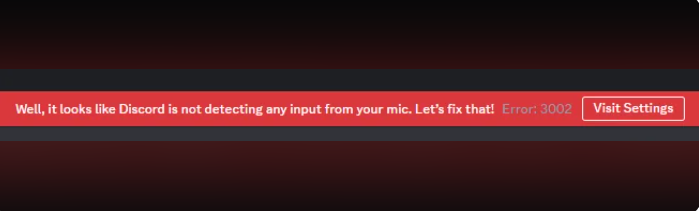
The Discord error 3002 message appears when Discord detects your microphone but can’t hear any audio. Discord’s own support guide lists it as a “Silent Audio Input” issue.
A lot of the time, it starts after reconnecting a headset, changing audio devices, switching from browser to desktop Discord, or updating Windows.
Try Closing Discord First
Before you change settings, try completely closing the Discord.
A lot of people reopen the app without realizing it’s still running in the background. Open Task Manager and end every Discord-related process you see. Then launch Discord again and test the mic. This simple fix can fix the mic issue quickly.
Check Windows Microphone Permissions
A Windows update can reset your mic permissions that can trigger the Discord error 3002 mic error.
Open Windows Settings, go into Privacy & Security, then check the microphone section. Make sure microphone access is enabled overall and that Discord is allowed to use it specifically.
If you use Discord in a browser, check that the browser itself still has microphone permission too.
Ensure Discord Picked the Right Mic
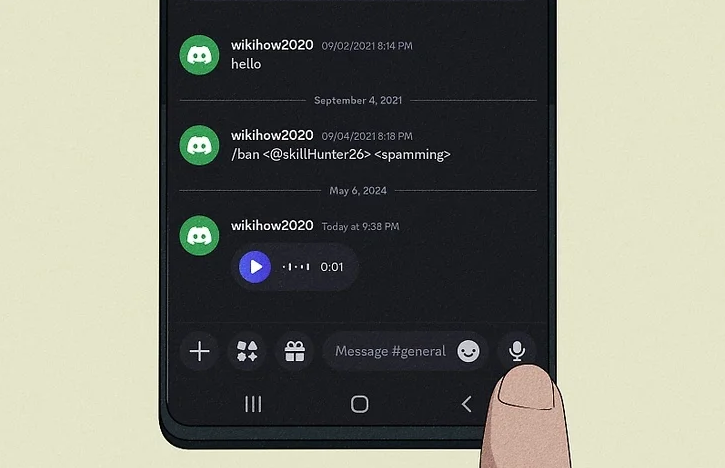
Discord occasionally switches to the wrong input device on its own, especially after plugging in USB headsets, Bluetooth earbuds, or external microphones.
Open Discord settings, head into Voice & Video, and manually choose the microphone you actually want instead of leaving it on “Default.” Then run Discord’s mic test and check if it hears you.
A lot of 3002 error Discord problems turn out to be nothing more than Discord listening to the wrong device.
Check If the Mic Got Muted Somewhere
Check the physical mute button on your headset (if it has one). Then check Windows sound settings and Discord’s own input slider. Discord specifically lists muted or silent audio input as one of the main causes behind Discord error 3002 mic.
Also, look at your microphone input level in Windows sound settings. If the volume is extremely low, Discord might detect the device but still fail to hear anything from it.
Turn Off Push to Talk for a Minute
Sometimes the mic itself is perfectly fine, and Push to Talk is the real issue.
Switch temporarily to Voice Activity and test again. Push to Talk can sometimes make it seem like the mic stopped working, especially if the keybind isn’t triggering correctly, which can make it seem like the mic died completely.
Try the Windows Recording Troubleshooter
Windows still has a built-in recording troubleshooter, and while it’s basic, it can sometimes catch weird audio problems.
Search “Troubleshoot settings” from the Start menu, open the audio troubleshooters, and run the Recording Audio check.
It can help you spot disabled recording devices, audio conflicts, or broken microphone settings.
Clear Discord’s Cache Files
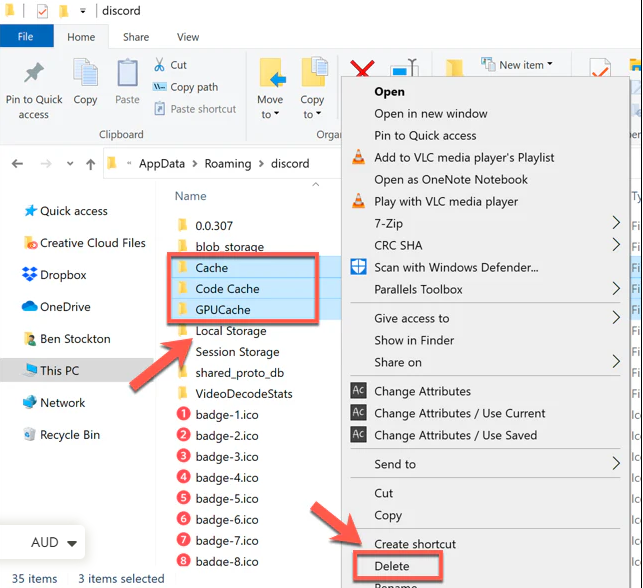
You might not even notice it, but Discord’s local files sometimes get messy after updates or crashes.
Close Discord fully first. Then press Windows + R, type %appdata%, and delete the Discord folder inside. When Discord launches again, it rebuilds fresh local files automatically.
This is one of the more common fixes for the error 3002 Discord issue.
Disconnect Extra Audio Devices
You can confuse Discord if you connect multiple audio devices at once.
Like USB headsets, webcams with microphones, Bluetooth earbuds, capture cards, and external audio devices, they can all potentially interfere with microphone detection. Disconnect the extra devices temporarily and test again. Discord’s own troubleshooting guide also mentions audio input conflicts as a possible cause.
Browser Users Should Clear Cache
If you use Discord in Chrome or another browser, cached permissions can sometimes break microphone access.
Open your browser settings, clear cached files and site permissions, then reopen Discord and allow microphone access again when prompted.
FAQs
Why is Discord detecting my mic but not my voice?
Most of the time, it ends up being something small, like the mic volume being too low or Discord losing permission to use it.
Can Discord Error 3002 happen in browsers too?
Yes, especially if the browser blocked mic access at some point or the site permissions got messed up.
Does restarting Discord actually help?
Weirdly enough, yes. Discord sometimes gets stuck on the wrong audio device, so you have to fully close it and reopen everything.
Can USB headsets cause error 3002 Discord?
They definitely can. Discord gets confused when multiple audio devices are connected at once.
Final Thoughts
Discord Error 3002 is annoying to deal with, but it usually isn’t anything serious. Most of the time, the problem ends up being tied to microphone permissions, muted input, or Discord picking the wrong audio device.
Once you figure out what changed, whether it’s a Windows setting or a Discord input issue, the mic usually starts working normally again.
Read Also